

L5X file: what it is and how to open, edit or convert one
An L5X is Studio 5000's XML export. What is inside it, how it differs from L5K and ACD, and how to open, import, hand-edit or convert one safely.
By the LADX engineering team
Short answer
An L5X file is the XML export format of Rockwell's Studio 5000 Logix Designer. It holds either a whole controller project or selected components, such as a routine, some rungs, a user-defined type or an Add-On Instruction, as plain ASCII XML with each ladder rung stored as neutral text. Any text editor can open it; Logix Designer imports it.
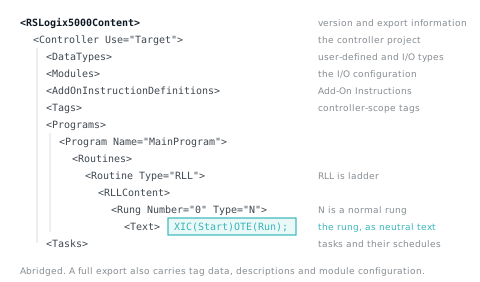
An .L5X is what Studio 5000 Logix Designer writes when you export a project, or part of one, as XML. It turns up attached to emails, in version control, in migration projects, and on the desk of somebody without a Logix Designer licence who needs to know what is in it.
Rockwell documents the format in the Logix 5000 Controllers Import/Export Reference Manual, publication 1756-RM014. Everything below that is specific to the format comes from that manual or from the Logix Designer online help.
What an L5X is
Rockwell describes the .L5X file as an ASCII file structured with XML that you can open and modify in a text editor such as Notepad, or view in a browser and other tools that read XML.
It can hold two different things. A full project export carries the whole controller. A component export carries a selected piece and whatever it references. The online help lists the components that can travel as L5X: programs and equipment phases, routines and phase state routines in any language, ladder rungs, user-defined data types and string types, Add-On Instructions, trends, tag-based alarms and modules. It adds that the export includes referenced components an import will need, such as tags.
The useful accident of the format is that ladder logic inside it is not XML. Each rung is stored as Rockwell neutral text, the same notation people paste into forum posts: XIC(Start)XIO(Stop)OTE(Run);.
L5X, L5K, ACD and CSV compared
| File | What it holds | Opens in | Use it for |
|---|---|---|---|
| .ACD | The project itself | Logix Designer | Normal work, download and upload |
| .L5X | XML: a whole project, or selected components | Logix Designer import; any text or XML editor | Moving components between projects, reviewing, diffing, generating code, converting |
| .L5K | ASCII text: a whole project | Logix Designer (File, Open); any text editor | Whole-project text export, the older format |
| .CSV or .TXT | Tags and logic comments only | Excel, text editors; Logix Designer import | Bulk-editing tag names, descriptions and comments |
Rockwell's rule of thumb from 1756-RM014: for the entire project use L5K or L5X; for individual portions use L5X; for tags and logic comments use CSV or TXT. TXT is the one to pick for comments in Chinese, Japanese or Korean, because the CSV format does not support double-byte characters.
Inside the file
The root element is RSLogix5000Content, which carries version and export information. This is the example Rockwell prints in 1756-RM014, from a whole-controller export:
<?xml version="1.0" encoding="UTF-8" standalone="yes"?>
<RSLogix5000Content SchemaRevision="1.0" SoftwareRevision="26.00"
    TargetName="Controller_1" TargetType="Controller" ContainsContext="false"
    Owner="User, RA" ExportDate="Sun May 18 13:02:10 2014"
    ExportOptions="DecoratedData ForceProtectedEncoding AllProjDocTrans">
SoftwareRevision is the Logix Designer version that wrote the file. TargetName and TargetType say what was exported; here, a whole controller. ExportDate changes on every export, which matters if you keep exports in version control. Under the root, the components nest like this (abridged):
<Controller Use="Target" Name="Line1" ...>
  <DataTypes> ... </DataTypes>
  <Modules> ... </Modules>
  <AddOnInstructionDefinitions> ... </AddOnInstructionDefinitions>
  <Tags> ... </Tags>                      <!-- controller scope -->
  <Programs>
    <Program Name="MainProgram" ...>
      <Tags> ... </Tags>                  <!-- program scope -->
      <Routines>
        <Routine Name="MainRoutine" Type="RLL">
          <RLLContent>
            <Rung Number="0" Type="N">
              <Comment><![CDATA[Start the conveyor]]></Comment>
              <Text><![CDATA[XIC(Start)XIO(Stop)OTE(Run);]]></Text>
            </Rung>
          </RLLContent>
        </Routine>
      </Routines>
    </Program>
  </Programs>
  <Tasks> ... </Tasks>
</Controller>| Element | Holds |
|---|---|
Controller | The project; its Use attribute marks it as the target of the export or only as context |
DataTypes | User-defined and I/O data structures |
Modules | The modules in the controller organiser: the I/O tree |
AddOnInstructionDefinitions | Add-On Instructions, with their parameters, local tags and routines |
Tags | Controller-scope tags; a Program has its own Tags element for program scope |
Programs and Routines | Programs and their ladder, function block, SFC and Structured Text routines |
Tasks | Controller tasks |
Trends, QuickWatchLists | Trends and quick watch lists configured in the project |
Data types are covered in user-defined types and Add-On Instructions in their own article; in the file, both are simply further elements under Controller.
Ladder logic is stored as neutral text
A ladder routine is a Routine element with Type="RLL", containing RLLContent and one Rung element per rung. Each Rung has a Number, a Type, an optional Comment and a Text element whose CDATA holds the logic. Every rung ends with a semicolon, and a branch is a pair of square brackets with commas between the legs:
[XIC(Start_PB),XIC(Motor)]XIO(Stop_PB)OTE(Motor);
XIC(Motor)TON(Fan_Delay,5000,0);
XIC(Part_Eye)ONS(Part_OS)ADD(Parts,1,Parts);
Juxtaposition is series and a bracket group is parallel, so the first rung above reads: (Start_PB or Motor) and not Stop_PB drives Motor. Normal rungs have Type N. The other types the manual lists (I, D, R, IR and pending variants such as rN, e, er and d) mark inserted, deleted, replaced and pending rungs.
Reading neutral text
1756-RM014 lists the neutral text form of every ladder instruction. The operands are positional, which is all you need to read most rungs:
| Instruction | Neutral text | Operands, in order |
|---|---|---|
| XIC, XIO, OTE, OTL, OTU | XIC(data_bit) | The bit examined or written |
| ONS | ONS(storage_bit) | The bit that remembers last scan's rung state |
| OSR | OSR(storage_bit,output_bit) | Storage bit, then the one-scan output bit |
| TON, TOF, RTO | TON(timer,preset,accum) | TIMER tag, preset in ms, accumulated value |
| CTU, CTD | CTU(counter,preset,accum) | COUNTER tag, preset, accumulated value |
| MOV | MOV(source,destination) | Value or tag, then where it goes |
| ADD | ADD(source_A,source_B,destination) | Two operands, then the result |
| EQU, GRT, GEQ, LEQ | EQU(source_A,source_B) | The two values compared |
| JSR | JSR(routine_name,input_1,...,return_1,...) | Routine, then any parameters |
| GSV, SSV | GSV(class_name,instance_name,attribute_name,destination) | Object class, instance, attribute, tag |
| MSG | MSG(message_control) | The MESSAGE tag |
Rockwell's own example from the same manual shows a JSR passing parameters: JSR(DayOfWeek,1,TestDateTime,Test_Result). Instructions that hold state, such as timers, counters and messages, always name a tag of their own type, which is why those tags appear in the export even when you only exported a routine.
Tag data: raw, L5K and decorated
Tag values, module configuration and default values sit in Data elements, which come in three formats. Raw is a hex dump that includes hidden configuration data and is not meant to be read; it is the default and has no Format attribute. Decorated is readable, member by member. L5K is the L5K text format wrapped in CDATA.
On export Logix Designer writes raw and decorated together (except for module InputTag data, which gets no raw form). On import, the formats must appear in the order raw, L5K, decorated, and a later one overwrites an earlier one where they differ. So if you change a value in the decorated data, the decorated value wins. The L5K data format is never exported, only accepted, so that generation tools written for L5K can move to L5X.
Open, import or convert: what to use
| You want to | Do this |
|---|---|
| Read it without Studio 5000 | Open it in a text editor or browser, or load it in LADX Convert to see the ladder as Structured Text |
| Open a full project export | In Logix Designer, File, Open, pick the .L5X, then choose where to save the imported project and select Import |
| Add a program, routine, UDT or AOI | Right-click the destination folder in the Controller Organizer and choose Import; check the Import Configuration dialog |
| Add rungs to a routine | In the ladder editor, right-click a rung header and choose Import Rungs |
| Export | Right-click the component and choose Export; for rungs, Edit, Export Rungs |
| Make an L5K | Open the project in Logix Designer and use File, Save As with the .L5K type |
| Get tags into Excel | From the open project, Tools, Export, Tags and Logic Comments, as CSV or TXT |
File, Open is for an L5X that is a full controller export; that is how 1756-RM014 describes it. A routine, program or rung export goes in through Import, into a project that is already open; when you import a component, select the container it belongs in first (to import a program, select its task). If File, Open refuses a file, look at TargetType in the root element before anything else.
Before you hand-edit an L5X
Editing the XML is legitimate, and Rockwell documents it as a supported workflow. It has consequences that are easy to miss.
- Going online. Importing a full L5X creates a project with a new creation stamp, so it no longer matches a controller downloaded from the original. You must download, or upload into another project; an upload loses whatever the import changed. Component imports and CSV imports that create or retype tags also clear the download stamp.
- Forces. A project imported with forces defaults to Forces Disabled, even if it was exported with forces enabled. Rockwell's instruction is not to modify forces in the file at all.
- Source protection. Since version 20, source-protected routines and Add-On Instructions export encrypted by default. Cleartext needs a workstation enabled for source protection, the 'always encode' option cleared, and the source key in the sk.dat file. Encrypted content sits in an EncodedData element instead of readable logic, so a converter or a reviewer sees nothing of it.
- Comments and booleans. XML comments are allowed anywhere outside a tag and are ignored on import; descriptions are imported. Boolean attributes are true or false in L5X, where L5K uses 1 or 0.
- Data values. Edit the decorated data, not the raw hex, and remember it overrides the raw values on import.
The safe habit is to import every hand-edited file into a scratch project first and check what the import reports before it goes anywhere near the real one.
L5X in version control
Because it is text, an L5X diffs. Committing a full export beside the ACD on every release turns 'what changed between versions' into a readable diff, which is the approach in PLC version control. Expect the root element to change on every export, because ExportDate does, and ignore that line when reviewing.
Converting an L5X to another platform
LADX Convert reads an L5X in the browser and writes the ladder routines as IEC Structured Text, Siemens SCL, Rockwell neutral text or PLCopen XML, with a report of what did not come across. That report is the useful part: instructions it has no equivalent for are left out and flagged for rewriting by hand, routines in other languages are listed as skipped, RTO is flagged where it was read as TON, and tag types it does not model, such as REAL or STRING, are listed rather than silently changed. It does not read L5K; export L5X instead. It does not open an ACD; export from Logix Designer first.
A conversion is a rewrite, so check it. Ladder logic to Structured Text covers the rules and a test sequence for proving the result. For whole-platform moves, see cross-vendor PLC migration and, for older Rockwell systems, PLC-5 to ControlLogix migration.
Sources and further reading
- Rockwell Logix 5000 Controllers Import/Export Reference Manual (1756-RM014)literature.rockwellautomation.com
- Studio 5000 Logix Designer online help: Import and exportrockwellautomation.com
- Studio 5000 Logix Designer online help: Importing and exporting componentsrockwellautomation.com
Common questions
- Can I open an L5X file without Studio 5000?
- Yes. It is plain XML, so any text editor shows it and any XML viewer shows its structure. Rockwell's own manual says it can be opened in Notepad or a browser. Reading the ladder is harder, because each rung is neutral text inside the XML; a converter can turn those rungs into Structured Text you can read.
- Why can I not go online with the controller after importing an L5X?
- Importing a full L5X creates a new project with a new creation stamp, so Logix Designer treats it as a different project from the one in the controller. Rockwell lists two recoveries: download the imported project, or upload from the controller into a new project. Component imports can also clear the download stamp.
- Does an L5X export include the I/O configuration?
- A full project export does: the Modules element holds the I/O tree, including module configuration data. Modules can also be exported and imported on their own as components. A routine or rung export is built around the logic and the components it references, such as tags, rather than the whole project.
- Can I generate an L5X file from a script?
- Yes. The Import/Export reference manual (1756-RM014) documents the elements, attributes and neutral text formats a generator has to write, and Rockwell accepts L5K-format data inside an L5X so that generation tools written for L5K can move across. Import the result into a scratch project before trusting it.
Keep reading
- Instructions
Studio 5000 MSG instruction: path, setup and error codes
How to set up a Studio 5000 MSG instruction: message types, the communication path, connected and cached messages, and what each .ERR and .EXERR code means.
- Practice
ControlLogix major fault codes: Type 4 Code 20 and the rest
What the common ControlLogix and CompactLogix major fault types and codes mean, how to find what caused one, and how to clear it without hiding the next one.
- Practice
Version control for PLC code, realistically
Git works better than most engineers expect on some platforms and barely at all on others, and knowing which is which saves an argument.